How to Connect a Microphone to a Computer
To connect a microphone to a computer you have two routes. Plug a USB microphone straight into a USB port, or run an XLR microphone into an audio interface that then connects by USB. That is the entire map, and everything after it is detail. The catch is that the tidy route and the route that grows with you are not the same route, and I have watched the same person buy the wrong one twice in a month. Nobody plans to own three cables that do nothing. It just happens, like GAS, only cheaper.
The short version. USB microphone into a USB port is the fastest way to connect a microphone to a computer and it needs no extra box. For better sound and room to grow, use an XLR microphone into an audio interface, then USB into the computer. Condenser mics also need phantom power, the +48V switch on the interface. Budget starts with the sE Electronics X1 S around 156 euro; the reference is the Neumann TLM 103 around 1,100 euro. Not sure which? Try one on a 30-day Test-Drive in your own room.
The two ways in, and which one is yours
A microphone connects to a computer by one of two paths. Know which mic you own and the rest is easy.
USB microphone. The whole interface lives inside the mic. One cable, into a USB port, done. Windows or macOS sees it as an input within seconds. This is the route for a single voice, a podcast, a stream, a quick vocal idea at midnight.
XLR microphone plus an audio interface. The mic has a three-pin XLR plug and no USB anywhere. It cannot talk to a computer on its own, so it runs into an interface, and the interface handles the conversion and connects by USB or Thunderbolt. More boxes, more cable, far more headroom to improve. Every mic in the ladder below is this kind.

Nine times out of ten the confusion is right here. People buy a beautiful XLR condenser, plug the XLR into nothing, and wonder why the computer stays silent. The mic is fine. It is just waiting for the box you have not bought yet.
The simple route: a USB microphone
If you want the shortest distance between you and a recording, a USB mic is it. Plug it in, open Sound settings, pick it as the input device, and record. No drivers to hunt for on modern machines, no phantom power to remember, no interface on the desk. For one person talking into one mic, it is honestly hard to beat on effort.
The trade is flexibility. One USB mic is one input, forever. You cannot add a second mic, you cannot swap the preamp, and the day you want to record a guitar and a vocal at once, the USB mic taps you on the shoulder and says no. Great starting point. Poor ceiling.
The route that grows with you: XLR mic plus an interface
This is the setup that stays useful for a decade. An audio interface gives you a proper preamp, cleaner conversion, a headphone output that actually monitors, and room to add inputs later. You plug an XLR cable from the mic into the interface, plug the interface into the computer by USB, select it in your software, and you are recording at a quality a USB mic cannot reach.
Here is the one strong opinion I will spend on this post, and it is about the interface, not the mic. The cheapest interface is rarely the cheapest outcome. A customer once wanted the 80-euro box. I talked him into the 120-euro one instead, same number of inputs, but stable drivers. The 40 euro he saved would have bought him three months of random dropouts mid-take, which is the audio equivalent of your car starting only on days it feels like it. Buy the one with drivers that behave, and update those drivers before you ever assume the mic is broken.
Phantom power, or why your new condenser is dead silent
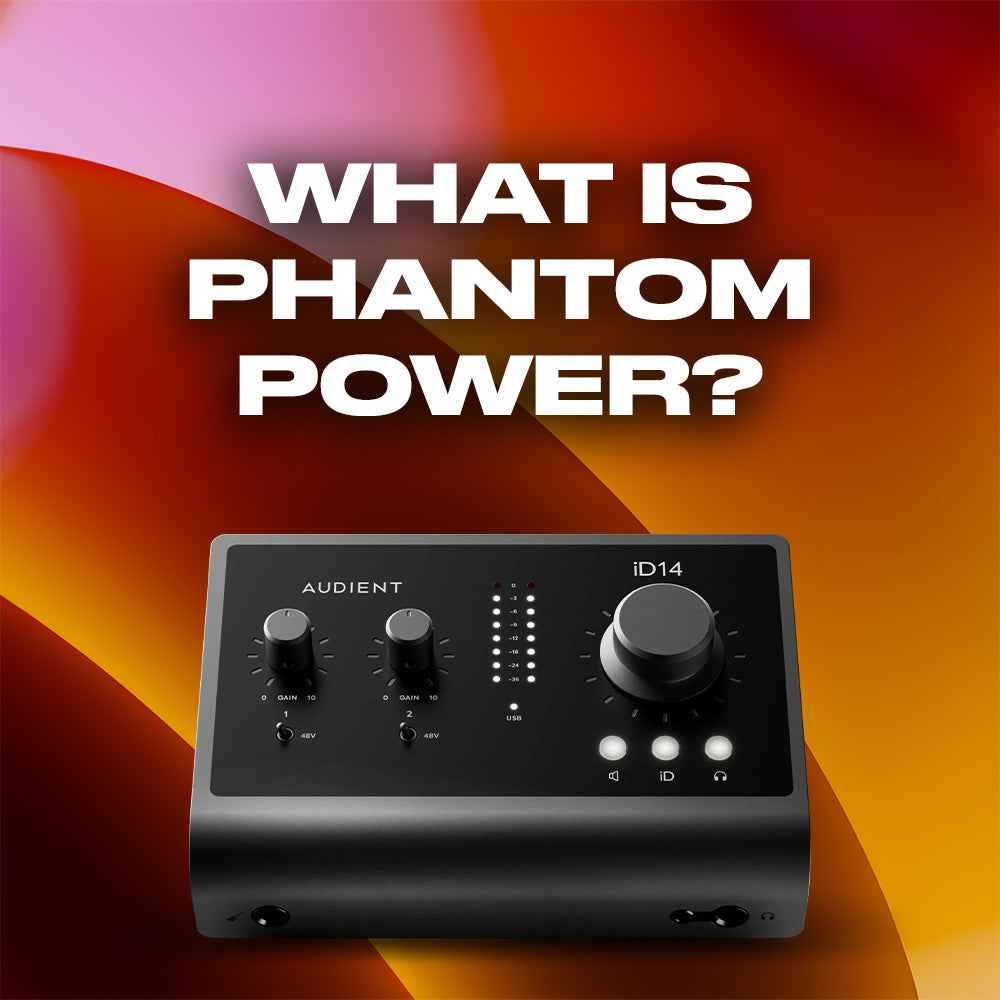
Plugged in a condenser mic through an interface and got nothing? You forgot the +48V switch. Condenser microphones need phantom power, a 48-volt supply the interface sends up the same XLR cable. No +48V, no sound, no matter how expensive the mic. Twenty years in and I still call that little blue light the mysterious glow of shame when I forget to flip it before a session.
Every condenser in the ladder below wants +48V. Dynamic mics do not, and phantom power will not hurt them, so if you run a mix of both you can leave it on. If you are still deciding between the two types, our guide on condenser versus dynamic microphones lays out where each one wins.
When the computer refuses to notice the mic
Everything is plugged in and the computer still acts deaf. Nine times out of ten it is one of three things, none of which is a dead mic. First, the input device. Open Sound settings and set the mic, or the interface, as the input, because the machine loves defaulting to a webcam mic you forgot exists. Second, drivers. A USB interface may need its own driver, and a Windows update can quietly break the old one, so reinstall it before you panic. Third, the gain knob. If the input dial is at zero, you have connected a working mic to a working computer and told it to whisper.
Reseat the XLR at both ends before you blame anything expensive. A loose pin or a half-seated USB plug causes more silent mics than actual faults do. This is the boring fix that works, and it costs nothing but the two seconds it takes to push a plug home.
Hearing yourself without the horror-movie echo
You want to hear your own voice while you record, without a delay that makes every word feel like it left a second ago. That delay is latency, and the answer is direct monitoring, a feature on almost every audio interface. Flip it on and the interface feeds your voice straight to your headphones, before the computer, so you hear yourself in real time. A USB mic with a headphone jack does the same trick. Plug your headphones into the mic, not the laptop, and the echo problem disappears. Whiplash taught us that rushing the tempo is a crime; hearing yourself a beat late will make you commit it.
Five microphones worth plugging in, budget to flagship
Here is a clean ladder, all XLR, one standout per brand, all things we stock and plug in daily. Each needs an interface and, being condensers, phantom power. Prices are today's shelf, and shelf prices move.
- The honest first mic. The sE Electronics X1 S around 156 euro is the one I hand to people cutting their first serious vocal. Quiet, clean, and far better than its price suggests. A budget that punches up, not a compromise you apologise for.
- The affordable standard. The RODE NT1 5th Gen around 184 euro is famously one of the lowest-noise studio condensers made, and the 5th Gen even offers a USB output if you want both worlds. On XLR into an interface, it is a record-ready vocal mic for the money.
- The vintage voice, real budget. The Warm Audio WA-47jr around 329 euro is a FET take on the legendary U47 sound, big and forward, the kind of tone people chase for thousands. It flatters voices in a way that makes mixing faster.
- The treat-yourself tube. The Telefunken TF17 around 974 euro is a large-diaphragm tube condenser with the smooth, weighty top end Telefunken built its name on. This is the mic you buy when the recording is the point, not the hobby.
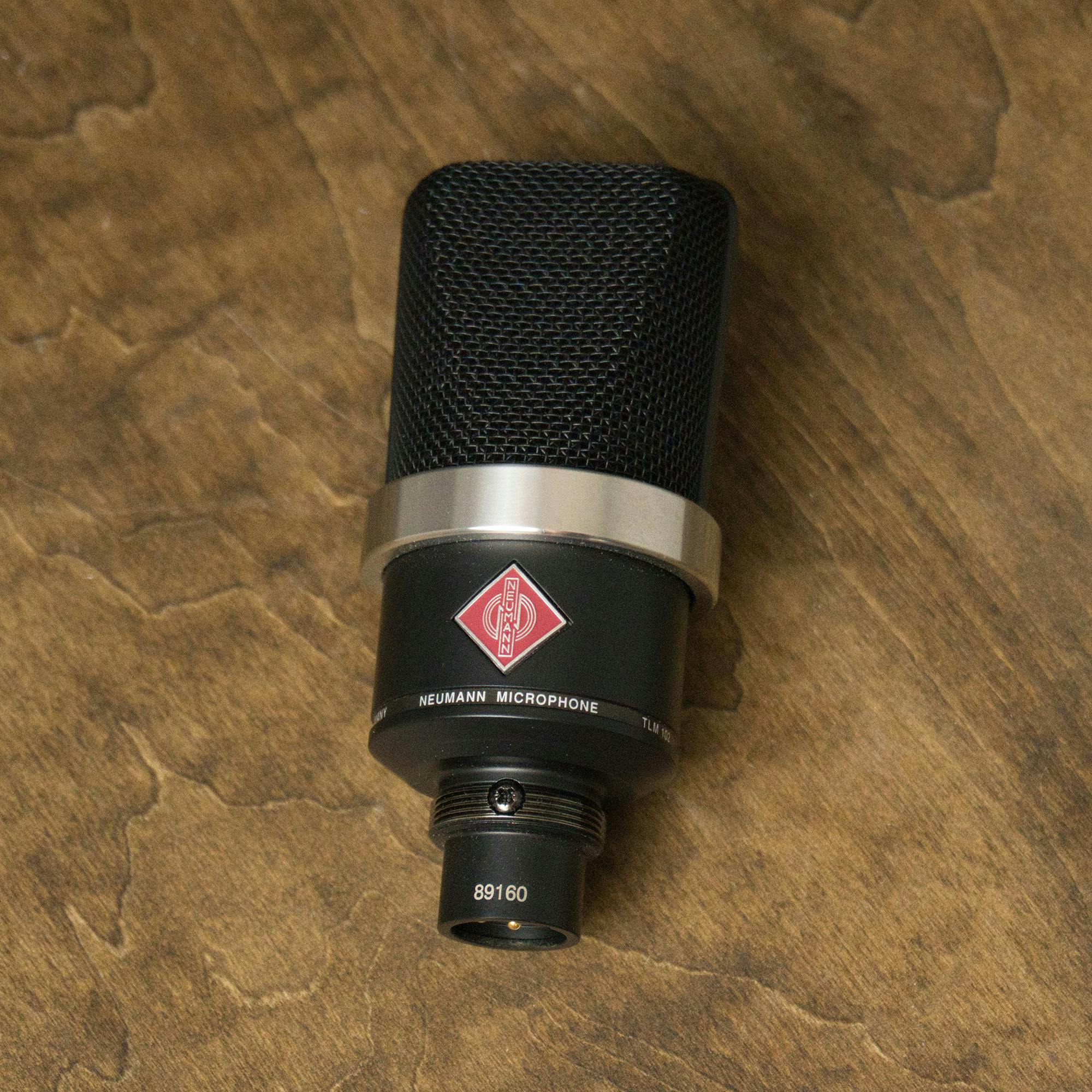
- The reference flagship. The Neumann TLM 103 around 1,100 euro is on a thousand records you already own. Detailed, uncoloured, and honest to a fault, it is the mic your future self will still be using two computers from now.
Whatever you plug in, you get a 36-month warranty across the range, a 30-day return window, and delivery to every EU country. Better still, we run a 30-day Test-Drive on eligible gear, so you can record on a mic in your own room, on your own voice, before you commit a euro. A mic that sings in the showroom and disappoints at your desk has only taught you the showroom is quieter than your desk.
Straight answers
How do you connect an external microphone to a computer?
Two ways. A USB microphone plugs straight into a USB port and works within seconds. An XLR microphone plugs into an audio interface with an XLR cable, and the interface connects to the computer by USB. After plugging in, open your Sound settings and select the mic or interface as the input device.
Can you plug a mic directly into a computer?
A USB microphone, yes, straight into a USB port. An XLR microphone, no. XLR mics have no USB and cannot talk to a computer alone, so they need an audio interface in between. The old 3.5mm mic jack on some laptops works for a basic headset, but not for a professional XLR or a good USB mic.
Where do I plug in my mic on my PC?
A USB mic goes into any USB port. An interface goes into a USB port too, and the mic plugs into the interface, not the PC. Then set it as the input in Sound settings. Avoid the pink 3.5mm socket for anything serious, it is a basic headset input, not a studio path.
How do I get my microphone to work on my computer?
Check three things in order. Set the mic as the input device in Sound settings, install or reinstall the interface driver if it is USB, and turn the gain knob up from zero. Then reseat the XLR and USB plugs at both ends. Nine times out of ten the mic was never broken.
Do I need an audio interface to connect a microphone?
Only for XLR microphones. USB mics have the interface built in, so they need nothing extra. XLR mics need an interface to convert their signal and, if they are condensers, to supply phantom power. If you want to grow beyond one input later, the interface route is the one worth starting on.
So connecting a mic to a computer comes down to two roads, USB for speed and XLR plus an interface for everything after. Pick the mic that fits your voice and your budget, remember the +48V for condensers, and set the right input before you assume anything is broken. Bring your laptop and your voice down to the showroom, tell us about your room, and we will plug a few in and argue about preamps until closing. We have the coffee. You bring the takes.
Read next


- XLR vs USB Microphone: Which One Do You Actually Need?. If plugging in revealed the chain is too small, here is that decision again.
- The Best Audio Interface, and How to Actually Choose One. The interface sets your noise floor and how many mics you can run at once.
- How to Record Vocals at Home? A Complete Step-by-Step Guide. The gear works, now get a take that needs no excuses.